Create Swatch
Finding the specific ink values of a given color for the purposes of creating a device spot color can be difficult, as all devices will vary with their exact ink output. Creating a custom swatch can resolve this issue and provide the exact ink values of a given color output from your current device. These swatches can be used to visually color match a desired spot color.
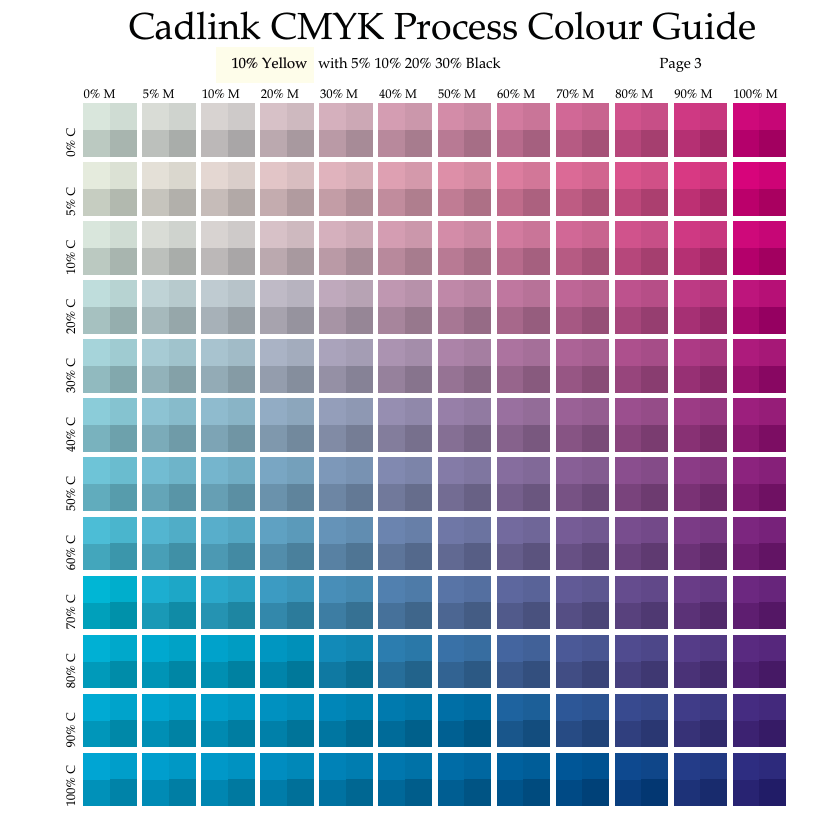
A swatch is a sample of each selected color and tint printed with ramping ink quantities, showcasing how the output looks with each ink value.
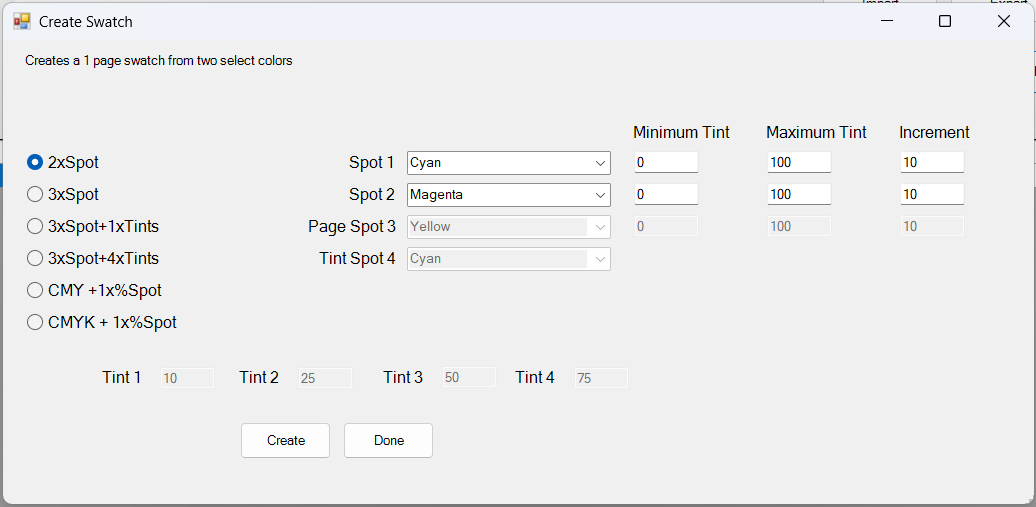
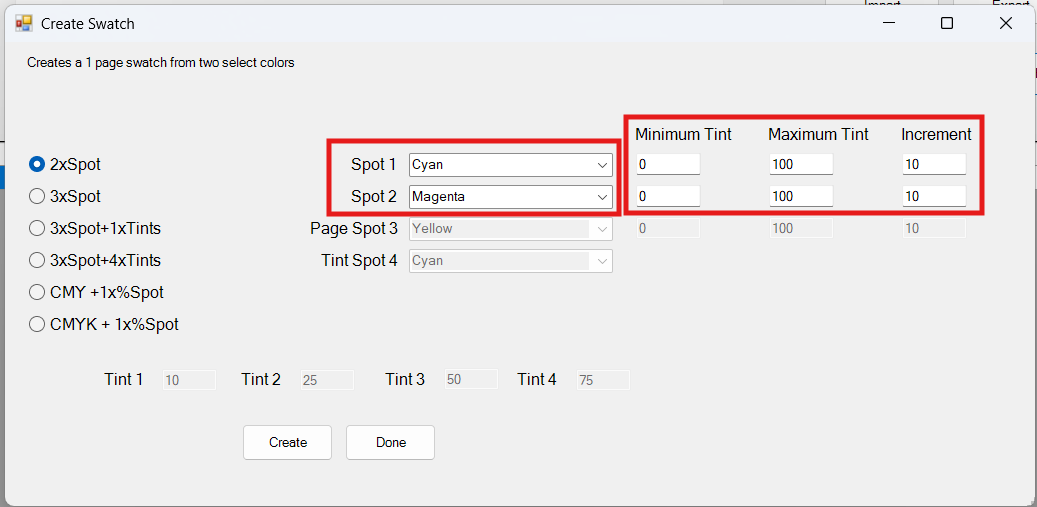
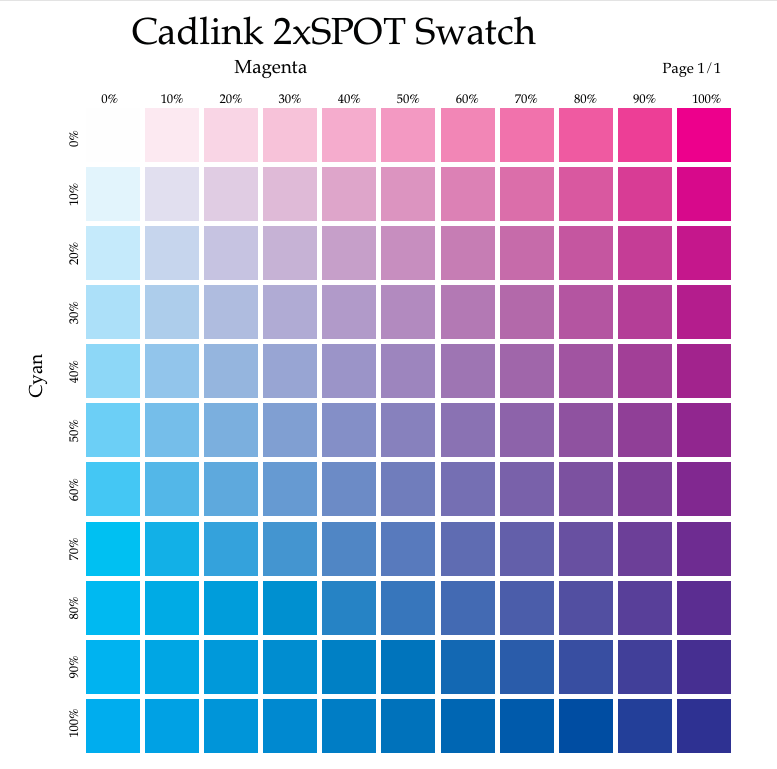
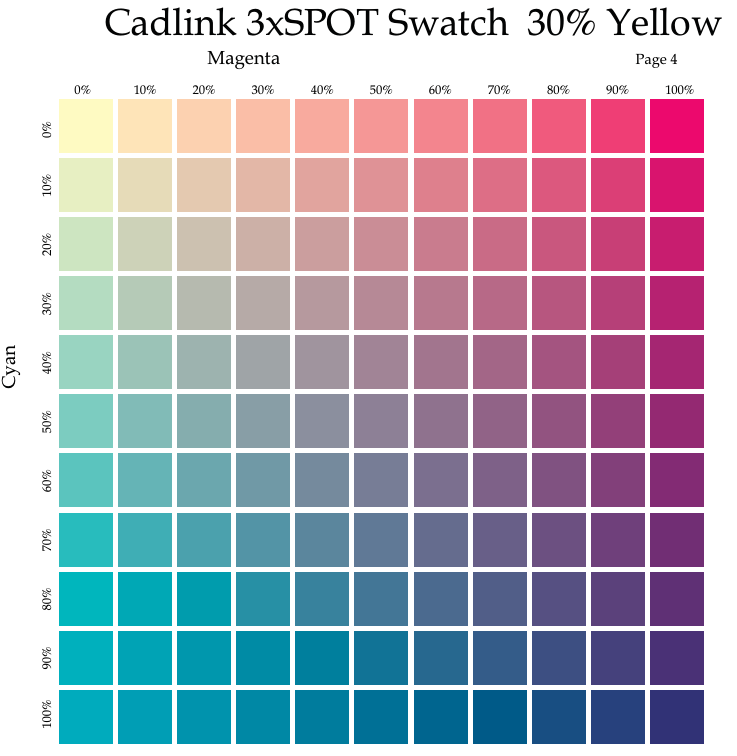
Swatches are made by combing specified CMYK inks in various ways. At minimum, a swatch can consist of two of the chosen inks, at a determined increment value. Select which two colors from Cyan, Magenta, or Yellow to use. Once chosen, each color can have its minimum and maximum ink percentage chosen, as well as how much each swatch square will increment by until it reaches the maximum amount. By default, each color begins at 0%, incrementing by 10% steps until it reaches the max of 100%. A simple two color swatch chart is a single page showcasing the output of both inks.
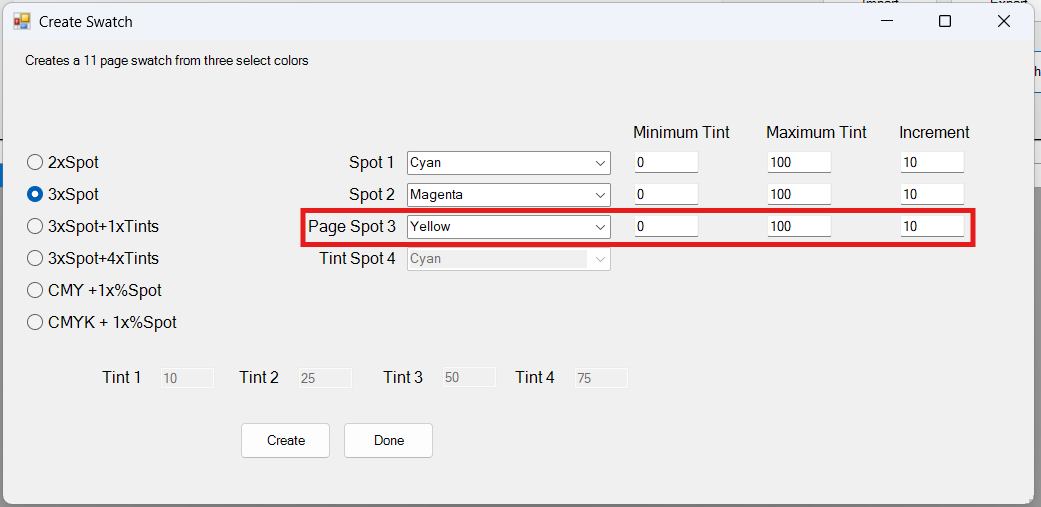
A third color addition can be used, called a page spot. Rather than ramping the ink value per square, this third color is applied to the entire page, incrementing on a per page basis. If added to our above example, the first page would contain Yellow at 0%, followed by page two at 10%, and so on. Use the dropdown and increment values to adjust the page tint as desired.
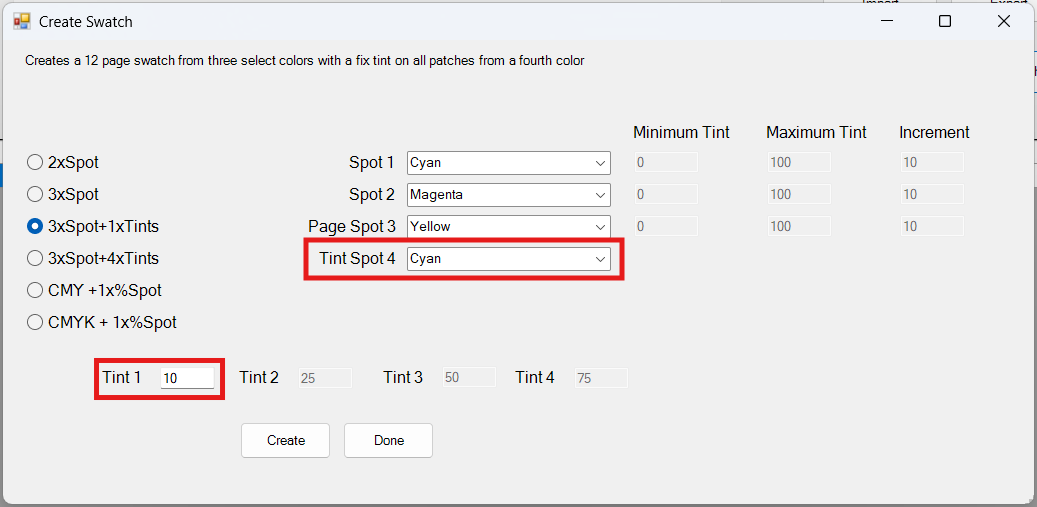
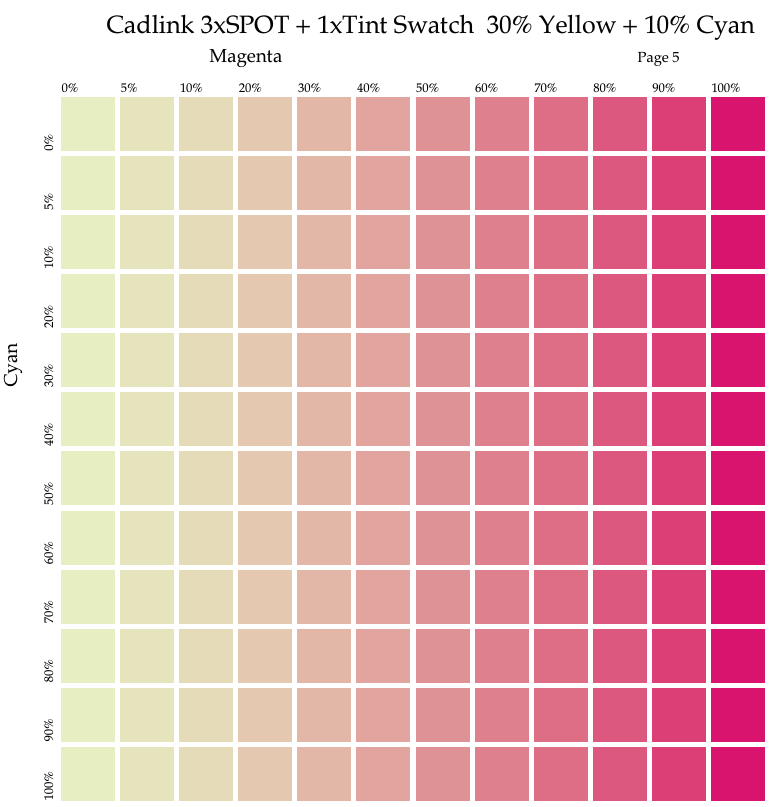
Tints can be added for additional color layers. These tints are a flat percentage of ink that is added to each individual square, and do not scale upwards like the rest of the ink values. An added tint of 10% Cyan means the entire swatch, regardless of how many pages, receives a final layer of 10% Cyan to each square. This tint can be adjusted using the corresponding tint value box. Note that when adding tints, the increment of spots and page spots can no longer be adjusted.
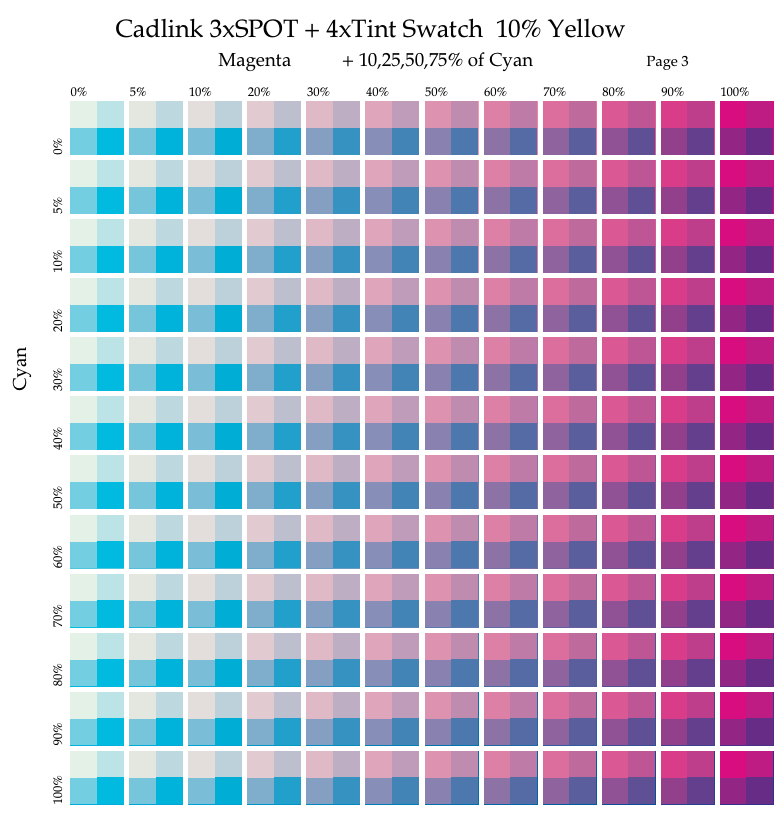
If additional tints are desired for testing purposes, a total of 4 tints can be added to a single swatch chart. By adding 4 tints, the swatch chart is adjusted to properly showcase each tint. Rather than individual squares, each step of color now consists of a box made up of 4 sections; each showcasing the tint values. By default, these tints are 10%, 25%, 50%, and 75%, but can be adjusted as desired.
The last options for swatch output consist of all CMY or CMYK inks with a single specified tint applied to the swatch. Use the drop-down to select the tint ink, and the appropriate box to determine the ink percentage put down for the tint.
Fiery family of software products
Making your machines run better
Copyright © 2026, Fiery LLC. All rights reserved. Privacy Policy.


