Note: These materials are offered only in English as supplementary examples for a deeper dive into
Activation Self-Reset
The Activation Self-Reset feature allows users to reactivate their software on a new computer without needing to contact Technical Support. This feature is intended for situations where the software was previously activated on another machine that is no longer accessible, such as after replacing or losing a computer.
When the software is installed on a new computer and an activation attempt using an existing activation code is performed, the software will present you with an option to perform a self-reset, allowing the license to be used on the new system.
Using Activation Self-Reset
Using Activation Self-Reset is a simple step-by-step process, like the normal activation process:
-
Install and launch the software on the new computer.
-
When the registration window appears, select Enter Activation Code.
-
Enter your activation code and complete the required registration information, including your:
- Name
- Email address
- Phone number
- Country
- Province/State
-
If the software detects that your activation is currently assigned to another machine and the self-reset eligibility requirements are met, you will be given the option to perform a self-reset.
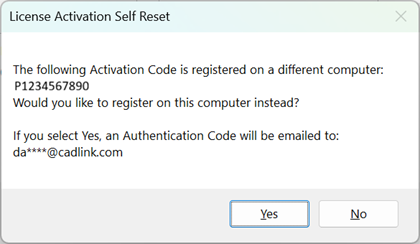
-
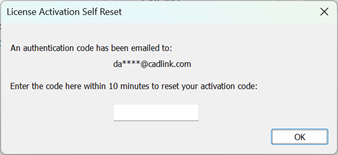
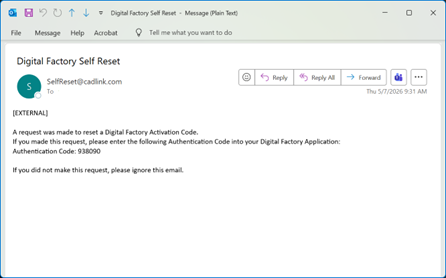
When you opt to perform a self-reset, a PIN is sent to the email address originally used to register the activation code and a window to enter the PIN appears on screen. There is a 10-minute period to enter the emailed PIN. Retrieve the PIN from your email and enter it into the box.
-
Once the PIN has been entered, a prompt will appear informing you of the activation success. You must fully relaunch Digital Factory for the activation to take effect.
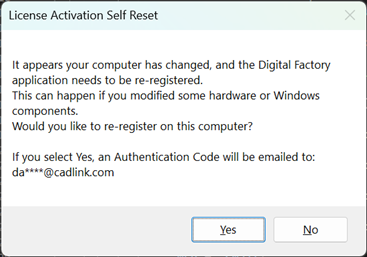
Digital Factory can also recognize if your system has changed and may prompt if you would like to perform self-reset activation, if available, upon attempting to launch your software.
Troubleshooting Activation Self-Reset
If a mistake is made during the self-reset process, such as missing the 10-minute period to enter the authentication number, or entering the incorrect uuthentication number, the self-reset process will close. In these cases, simply restarting the activation process will allow you to perform the self-reset process again.
Errors can occur for a variety of reasons, such as connection issues, invalid information, or other such circumstances. Error messages will appear to notify you of the specific issue and should be addressed to the best of your ability.
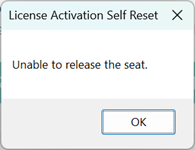
In cases where an error message cannot be addressed, or an issue persists when performing self-reset, it is recommended to contact Fiery Technical Support.
Fiery family of software products
Making your machines run better
Copyright © 2026, Fiery LLC. Tutti i diritti riservati. Informativa sulla protezione dei dati personali.


