Precut Ink Limits
The screen selector workflow within Fiery Color Profiler has been updated to include a process which allows users to review the ink limits of individual ink channels and adjust them according to their needs. Precutting ink channels is primarily useful for handling over-inking issues.
To access these additional settings, certain options must be enabled through the Fiery Color Profiler process to ensure the correct pages become accessible.
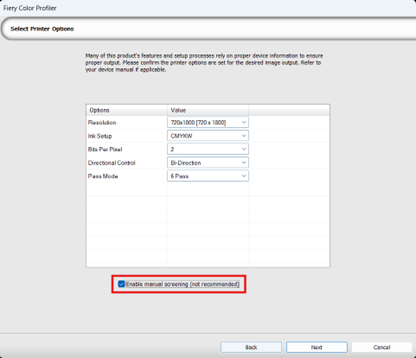
The first required option is on the Select Printer Options screen. Enable manual screening must be enabled to make sure the proper pages are displayed.
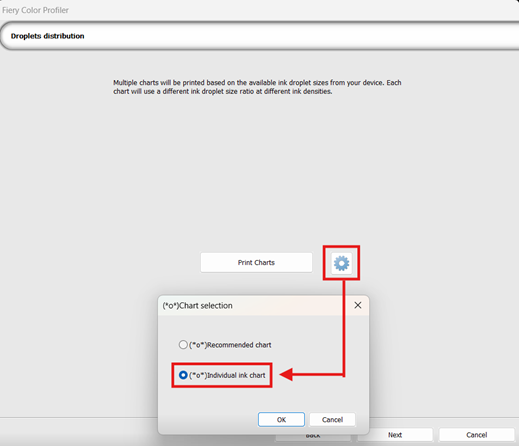
Continue with the manual screening process until the Droplets Distribution page is reached. To access the ink limits for individual channels, the charts must be set accordingly so that the individual channels can be manually reviewed. Next to the Print Charts button, click the Gear icon to open the Chart selection settings, and choose Individual Ink Chart.
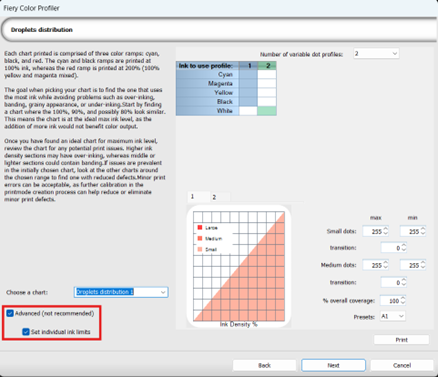
Proceed by printing your charts and moving to the next page. On the next page, look to the bottom left corner of the page, and enable Advanced, followed by Set individual ink limits.
Once both checkboxes are enabled, proceed to the next page. This page will have you print the individual ink limit chart. This chart contains a color ink ramp for each ink channel, beginning at a 10% ink limit, and incrementing by 10% up to 100%. It is important to note that white, clear, and other specialty colors are not included in this process.
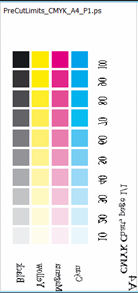
Visually review the chart to determine if any ink channels are over-inking or too saturated. Adjust the ink channel limit to the value that works best for your output.
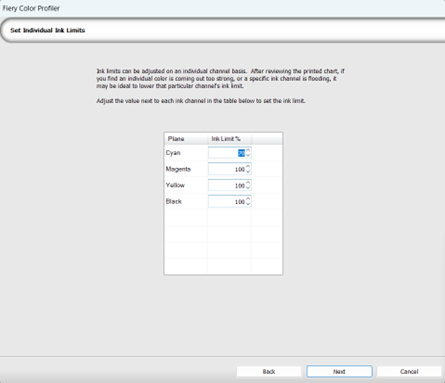
The values set in this page will be respected by Fiery Calibrator when printing out the swatches to be scanned when profiling. Once these values are set, you can continue to proceed with the Fiery Color Profiler with the new ink limit(s) in place.
Fiery family of software products
Making your machines run better
Copyright © 2026, Fiery LLC. Tutti i diritti riservati. Informativa sulla protezione dei dati personali.


