Badges / Multiples
您可以创建徽章,这些徽章是设计的副本,可以从文本文件将新文本替换至每个徽章中。

创建徽章
- 使用图形和文字物件创建初始设计。
注意:请勿对文字物件进行分组,并确保文字不会转换为线图。 - 准备包含徽章变量信息的文本数据文件,并将其另存为 .txt 文件。
- 使用布局 > 徽章创建徽章,使用徽章设置对话框表格作为指导。
- Choose the substitute text using the Replacement data file checkbox and locate the desired data file.
- 突出显示替换项目/文本字段中的变量文本。
- 在徽章设置对话框中输入所有其他选择(见下文),然后点击确定。
如果您选择了一个或多个文本字段,则会显示“文本替换”对话框。 - 输入并序列化所有数据后,再次点击确定以创徽章。
Using spreadsheet files for Text Substitution
The replacement data file function has been expanded to support spreadsheet data files such as .xlsx and .csv file types.Similar to using a .txt file for substitution, the text to be changed must be highlighted in the Replaceable items/text box.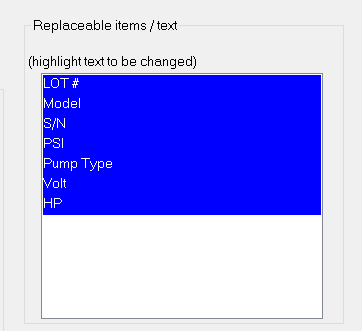
Once each item is highlighted, ensure the Replacement data file checkbox is toggled on, and find the desired spreadsheet data file using the browse button (it may be required to change the default display to show more than just .txt files).When the spreadsheet data file has been selected, the Excel Spreadsheet Badging window will populate the screen.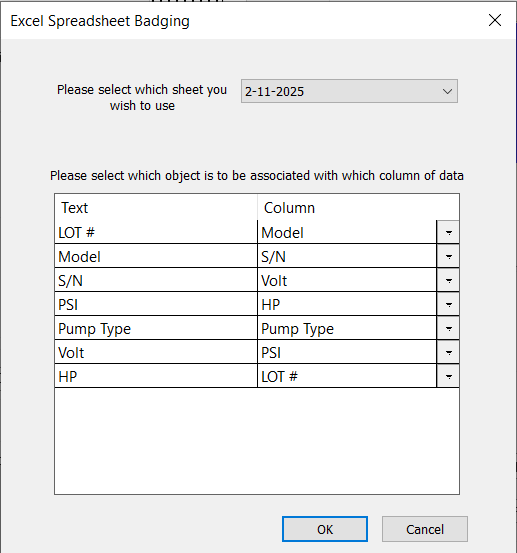
In the event the spreadsheet data file contains multiple sheets, the dropdown at the top can be used to specify which sheet should be used to substitute the data.Use the column field dropdowns to assign each replaceable text a column from which to obtain the new data.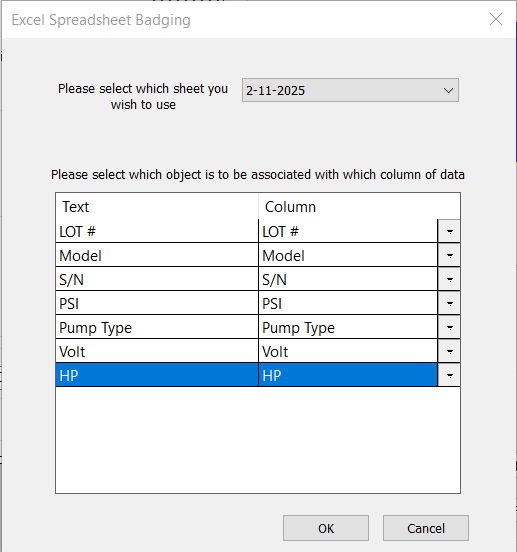
After the columns have been assigned, click OK to finalize the dialogue.Continue with the badge process as described in the next steps.
在文本替换对话框中编辑数据
- 要选择列内容,请单击列标题。
- 要编辑数据,请使用以下功能:
功能命令 Shortcuts
F2 Copy selected cells F3 Paste selected cells F4 Cut selected cells F5 Delete selected cells
The Text Subsitution dialogue also contains a "Clear Row" button.This works while at least one row is selected.Multiple rows can be cleared at once by using shift +click to select additional rows.The row itself is not deleted, only the contents of the row are removed.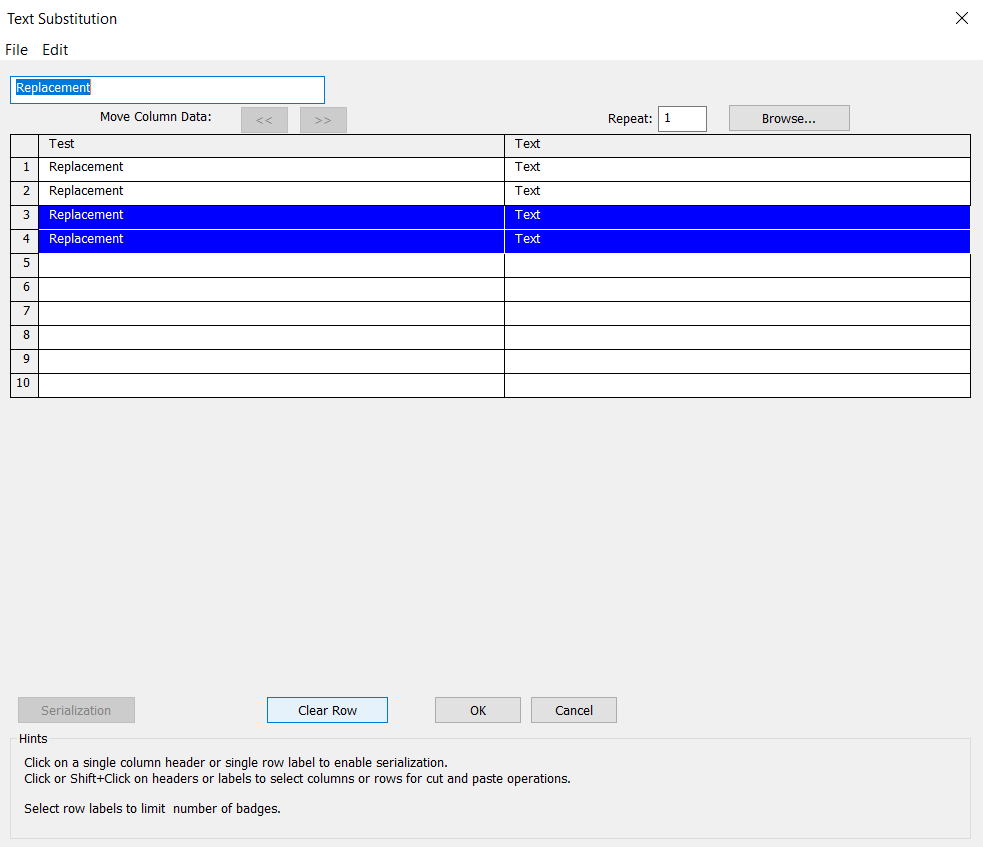
- 点击序列化。
序列化对话框出现。
序列化列
- 输入开始值(默认为初始数据)。
- 定义增幅和重复值。
- 选择选项将序列定义为数字或字母序列。
- 点击设为基底。
变量文本部分会突出显示。 - 点击确定。
文本替换对话框会更新,列数据会序列化。
Repeats
The repeat option in the text substitution window allows users to repeat each substitution a specified number of times.To repeat data in the text substitution window, select the cell(s) with the data you would like to repeat.Once selected, navigate to the repeat box, and enter the desired number of repeats.Press the Enter key while still in the repeat value box, and the selected cell(s) will be repeated accordingly.
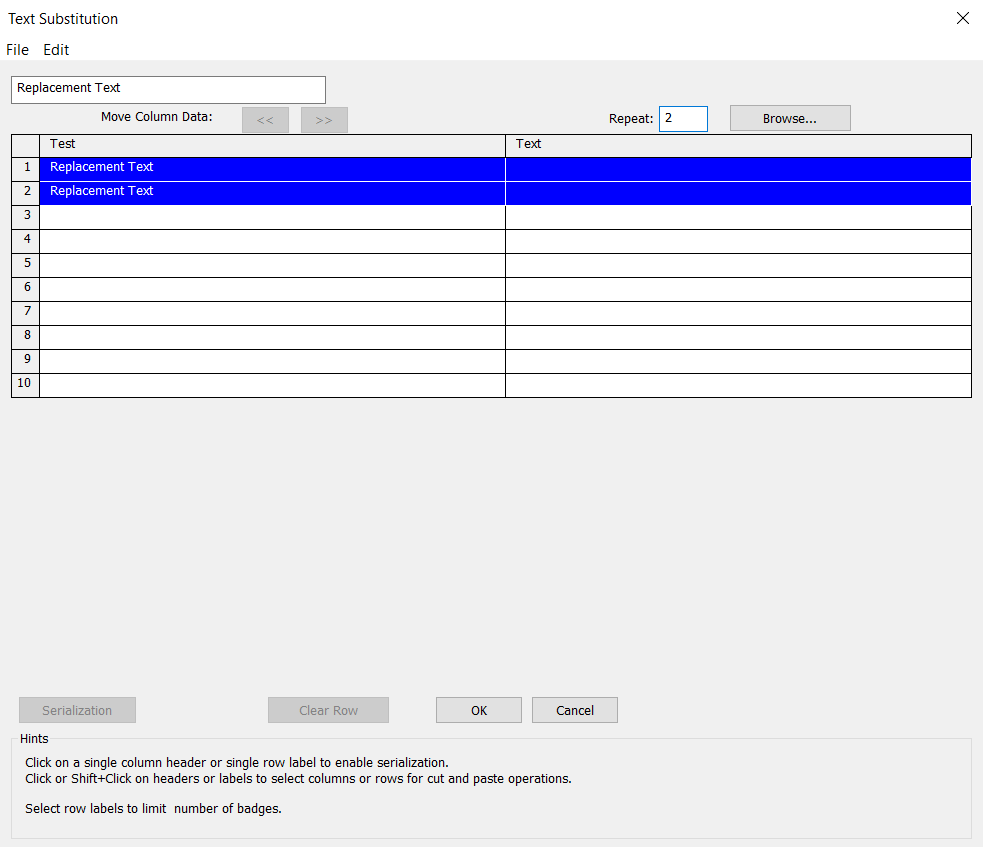
Any data below the repeated cells are shifted down to accommodate for the repeated data.The repeat cannot exceed the number of copies specified in badges setup window.
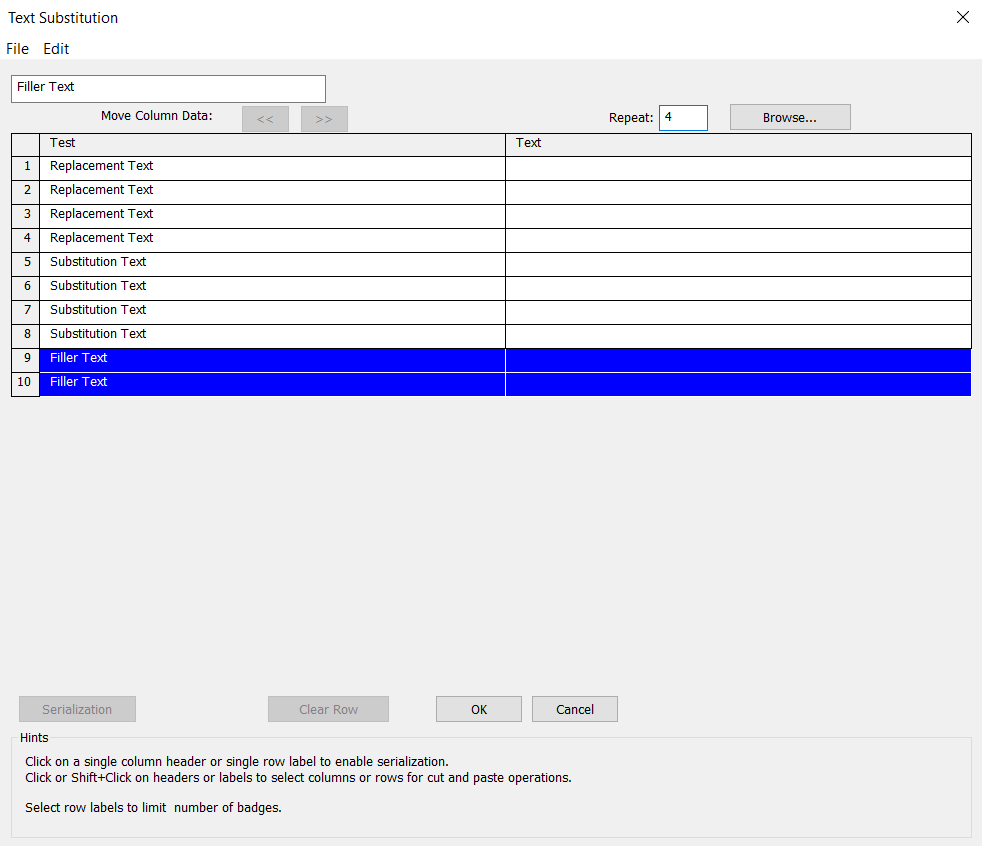
The example above has the number of copies set to 10.When repeat 4 is used for each cell, the last set gets cut to 2 as it cannot exceed the total number of badges.
Repeats can also be applied to entire columns or rows.Simply select the desired columns or rows (shift + clicking each desired row or column), and then apply the repeats the same as before.
徽章设置对话框
|
使用该表格进行配置 |
|
|---|---|
| 副本数量 | |
| 每页最多副本 | |
| 下拉列表 | 选择剪裁标志或线条。 |
| 使用版面 | |
| 颜色 | |
|
|
|
| 自定义尺寸 | |
| 高度 | |
| 宽度 | |
| 顶部边距 | |
| 左侧边距 | |
| 底部边距 | |
| 右侧边距 | |
|
间距 |
|
| 垂直 | |
| 水平 | |
| 可替换项目/文本 | |
| (将更改突出显示的文本) |
选择变量文本。 |
| Create Clones | When enabled, each created badge is a clone of the original object selected for the badge process.See Clones for additional information. |
| 对每个徽章分组 | 启用徽章分组。 |
|
页面预览 |
|
| 放置单选按钮 | 选择徽章排列的起始位置。 |
| 水平 | 启用垂直布局。 |
| 替换数据文件 | 启用替换文件。 |
| 空白字段 | 输入文件路径,或使用浏览按钮。 |
| 数据下拉菜单 | 选择数据文件的分隔符。 |
| 总页数 | 输入值。 |
页面控件
创建徽章后,使用工作区底部的按钮在页面之间移动。

页面0是默认工作区。当有多个页面时,页面0上的对象在所有页面上可见。
点击 可添加、折叠或删除页面。
Note: When collapsing pages, the offset value is in addition to the size of the blank (offset = blank size + offset value).
注意:如果您已选择一般首选项对话框的常规选项选项卡上的不允许在其他页面上修改页面 0 物件,那么页面 0 物件将在其他页面上锁定。
Fiery family of software products
Making your machines run better
版权所有 © 2026, Fiery LLC.保留所有权利。隐私政策。


