Engrave Menu
The following items are located under the
For more information about:
-
- Installing devices, see Installing Output Devices.
- Configuring cutting options, see Output Options dialog.
 Related Topics
ADA Plot: Opens the ADA Plot dialog. Select to cut raised elements, visual text, or braille text.
 ADA Module - General Feature Overview
Tool Options: Opens the Tool Options dialog to set up arc support, overcut, cut velocity, pauses for copies, tiles, pen, or pages, material, and to specify tool number for the selected tool.
Note: The controls that appear in this dialog are specific to the device. For more details, refer to the user manual.
Related link: Trailing Blade
Contour Cut: Opens the contour cutting options in the SmartBar.

Contour Cut and Half Cut Workflow
- Inside/outside: Used for contouring the inside of objects (such as the letter "O")
- Bitmap frame: When selected, only the rectangular bitmap frame is contoured.
- Corner style: Point, round, or miter. If round is chosen, inside corners can also be rounded.
- Merge: With multiple objects, merge all contours into a single contour. Control the contour tightness with the slider. Corners are rounded.

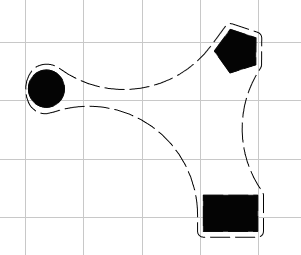
Die Cut: Opens die cut options for creating a geometric cut path centered on an image.

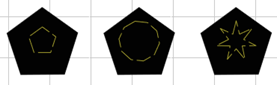
Tiling: Opens Tiling dialog. Set tiling options including overlap, spacing, and cut inset.
Cut Template: Select to open a cut template.
Note: This feature is only available on a new material blank.
Tool Library: Opens the Tools Library dialog. The Tool Library lists all of the machining bits that can be associated with a tool path. Many tools are pre-loaded, and more can be added. Set parameters.
Create Tool Path: Select one of the options to create a tool path. For full descriptions and explanations for configuration, if not populated below, see Tool Path Tools.
- Online
- Male
- Female
- Fill
- 3D chisel
- Relief fill: The Relief dialog appears. Select the tool, the minimum and maximum cutting depth, and the color layer to which the tool path is applied. If you click the ellipsis (
 ) next to depth, the Engrave Parameters dialog appears (see Tool Path Tools for details).
 Select Fine tool to remove any rough or leftover material from the initial fill pass. Choose the tool and depth.
Set a Fill style using the drop-down list (a preview shows the style). Set the fill overlap and angle. Some settings allow for optimized spiral fill. Select to optimize fill passes.
Select Sweep all or Ignore background depending on your needs, and enter the Object offset if you choose to ignore the background.
Use the Vector shape resolution drop-down list to select Standard, High, or Best.
-
Texture fill: The Texture Fill dialog appears. Select the tool and fill style. Set the edge offset and angle of the fill. Set the line spacing and line spacing variation percentage. Set the minimum and maximum length of the cut. Set the cut overlap and cut overlap variation percentage. Set the minimum and maximum depth. To group results, check the box. Select the fill color.
- Drill contour
- Drill center
Delete Tool Path: Click to remove the tool path on the selected object.
Edit Tool Path: Click to edit the tool path you created. The same dialog appears and lets you edit the settings.
Duplicate Tool Path: Click to duplicate the current tool path.
Convert to Online Tool Path: Click to convert the current tool path to an online tool path. For more information, see Tool Path Tools.
Edit Start Point: After selecting this option, click to set start point.
Show traveled distance: Displays tool history of distance traveled.
Note: Tool tracking must be enabled.
Object Total Area: Displays total area of object.
Select measurement units.
Selecting a new object while the Object Total Area window is open will update the Total Area values accordingly.
Plate Engrave: Opens the Plate Engrave dialog. Enter the engraving area width and height, select the engraver, and click Next.
Fiery family of software products
Making your machines run better
Copyright © 2025, Fiery LLC. All rights reserved. Privacy Policy.


